> ## Documentation Index
> Fetch the complete documentation index at: https://ampersand-24eb5c1a-odoo-deep.mintlify.site/llms.txt
> Use this file to discover all available pages before exploring further.
# Gong
## What's Supported
### Supported Actions
This connector supports:
* [Proxy Actions](/proxy-actions), using the base URL `https://api.gong.io`.
* [Read Actions](/read-actions)
### Supported Objects
The Gong connector supports **reading** from the following objects:
* Users (full read only)
* Workspaces (full read only)
* Flows (full read only)
* Calls and Transcripts (incremental read in private preview, contact [support@withampersand.com](mailto:support@withampersand.com)).
The Gong connector supports **writing** to the following objects:
* Calls
> **Note:** Due to Gong's processing time. `Calls` may not be available through Read Actions until up to an hour after a call ends, and `Transcripts` may not be available until up to 24 hours after a call ends.
### Example Integration
For an example manifest file of a Gong integration, visit our [samples repo on Github](https://github.com/amp-labs/samples/blob/main/gong/amp.yaml).
## Before You Get Started
To connect Gong with Ampersand, you must complete the [Gong partnership process](https://www.gong.io/partners/) and obtain a *Gong Sandbox* environment.
After your account is set up, you will need to acquire the following credentials from your Gong app:
* Client ID
* Client Secret
* Scopes
> **Important:** To read `Calls`, ensure that your Gong application includes the `api:calls:read:extensive` scope.
In the **Redirect URI** section, add the Ampersand Callback URL: `https://api.withampersand.com/callbacks/v1/oauth`.
 You will then use these credentials to connect your application to Ampersand.
Learn more about the Gong Partnership process [here](https://help.gong.io/docs/how-to-use-the-gong-developers-hub).
## Add Gong App Details in Ampersand
1. Log in to your [Ampersand Dashboard](https://dashboard.withampersand.com).
2. Select the project where you want to add the Gong App.
3. Select **Provider apps**.
4. Select Gong from the **Provider** list.
5. Enter the previously obtained *Client ID* in the **Client ID** field, the *Client Secret* in the **Client Secret** field, and the requested scopes in the **Permissions** field.
You will then use these credentials to connect your application to Ampersand.
Learn more about the Gong Partnership process [here](https://help.gong.io/docs/how-to-use-the-gong-developers-hub).
## Add Gong App Details in Ampersand
1. Log in to your [Ampersand Dashboard](https://dashboard.withampersand.com).
2. Select the project where you want to add the Gong App.
3. Select **Provider apps**.
4. Select Gong from the **Provider** list.
5. Enter the previously obtained *Client ID* in the **Client ID** field, the *Client Secret* in the **Client Secret** field, and the requested scopes in the **Permissions** field.
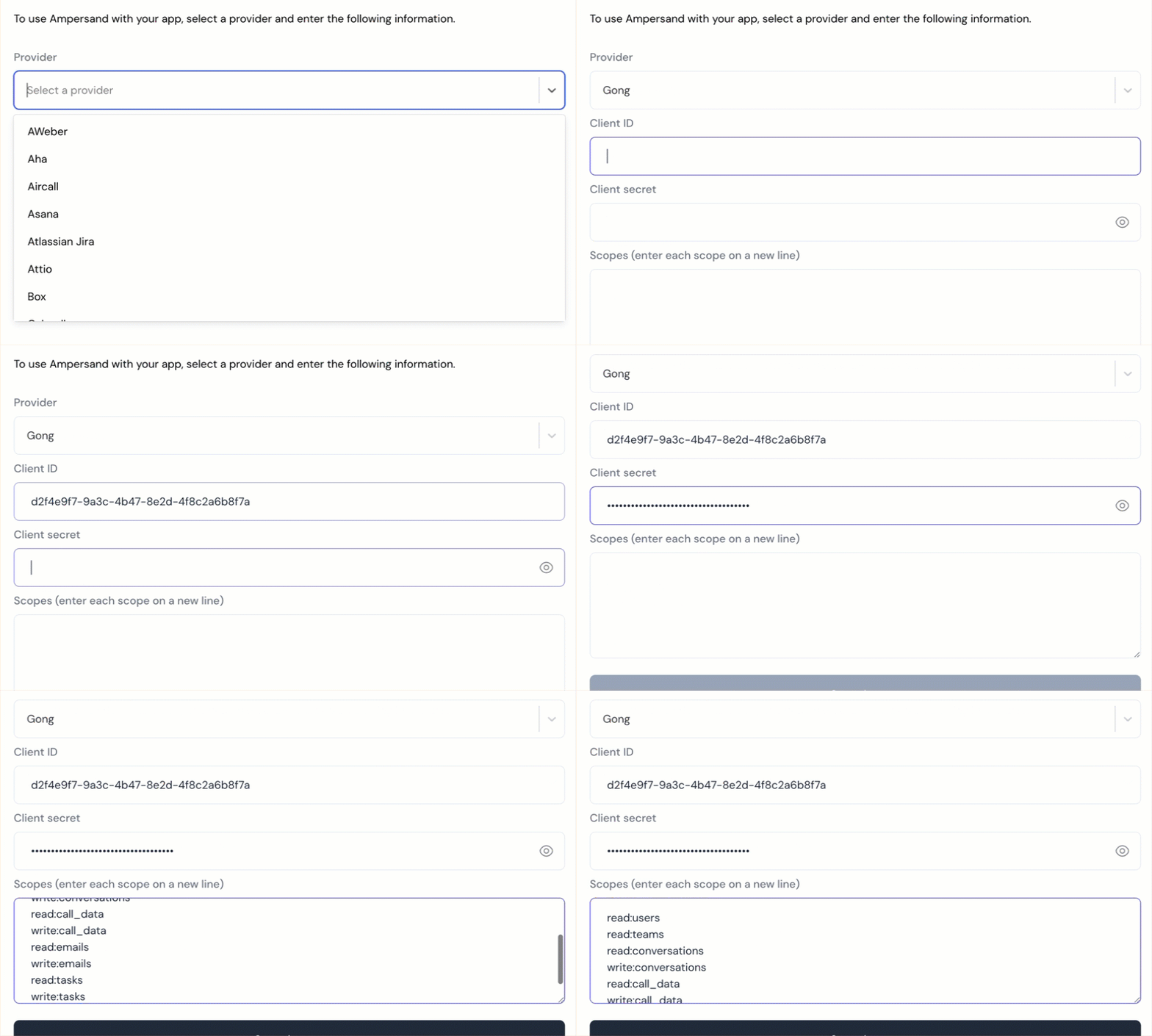 6. Enter the scopes set for your application in *Gong*.
7. Click **Save Changes**.
6. Enter the scopes set for your application in *Gong*.
7. Click **Save Changes**.